View from the Peak

Howdy Pierce Managing Partner

Sniffing iPad Traffic

April 7th, 2010 by Howdy Pierce

For a project I’m working on, I was wondering how a particular video-related feature on Apple’s new iPad works. In order to figure that out, I thought it would be interesting to connect a network sniffer in-line with my shiny new iPad, so I could capture and analyze all the network traffic flowing to and from the device.

Although I did this with the iPad, the technique below is not specific to it; you could use the approach below to capture network traffic to any Wi-Fi-enabled mobile device, like an iPod Touch or a Palm Pre.

An easy way to do this is to configure a computer to serve as a bridge between an Ethernet network and an ad-hoc Wi-Fi network. Then, by running Wireshark or another network sniffer on the computer, you can capture the packets as they flow through to the mobile device on Wi-Fi.
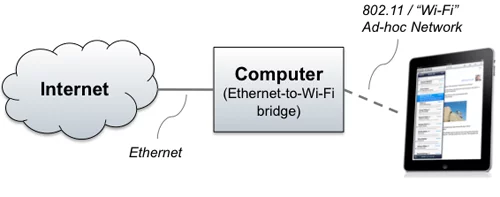
Sniffing iPad Traffic

My computer is a MacBook Pro running OS/X 10.6 “Snow Leopard”, but the same concept should work on Windows or on earlier OS/X versions, although the dialogs might look a little different. There are three steps:

  • Configure the computer to act as a Wi-Fi Bridge
  • Connect the iPad to the computer’s ad-hoc Wi-Fi network
  • Capture the packets

Step 1: Configure OS/X as a Wi-Fi Bridge

First, we need to configure OS/X as a Wi-Fi bridge. To do this, select “Create Network…” from the Airport drop-down menu. This dialog appears:
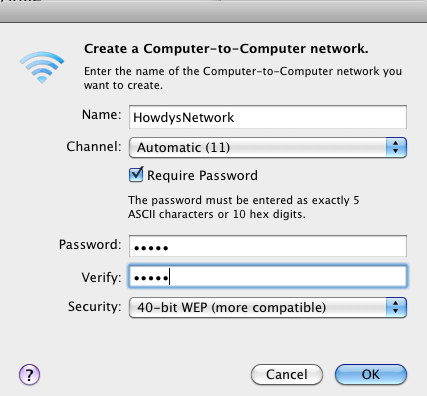
Type a network name, and, if you like, assign a password. I assigned a password just so I could ensure that only one device was connecting to my bridged Mac. We are nerds here at Cardinal Peak, so we tend to have a lot of devices floating around our office!

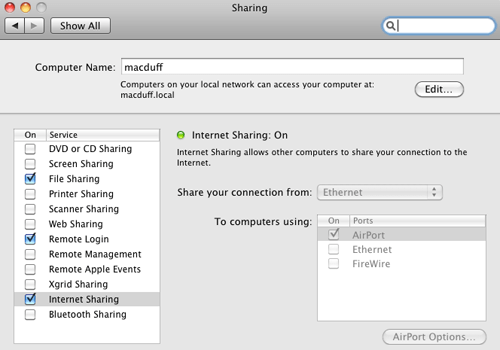
At this point, the iPad would be able to connect to the computer, but the computer is not yet configured to bridge the packets from the 802.11 network onto the Ethernet network. To configure bridging on OS/X, you need to turn on what Apple calls “Internet Sharing”. Go to System Preferences and select the “Sharing” option. Turn on Internet Sharing, and set it up to “Share your connection from” “Ethernet”, “To computers using” “AirPort”:

Step 2: Connect the iPad to the ad-hoc Wi-Fi network

Next, you’ll need to configure the iPad to connect to the ad-hoc Wi-Fi network you just created. This is pretty easy: Go to Settings, and then Wi-Fi. You should see your new ad-hoc network in the list—in my case, I’m looking for “HowdysNetwork”:
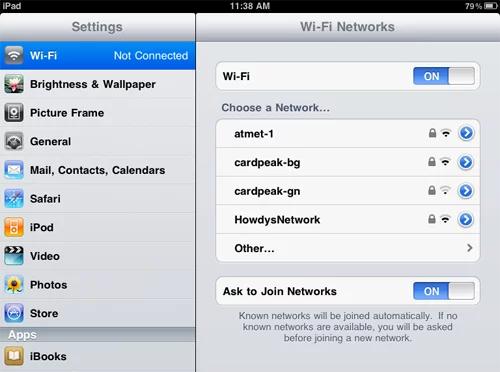
Just tap on the ad-hoc network. If you elected to use a password, you’ll be prompted for it.

You can confirm your iPad’s network configuration by tapping the right arrow next to the network name:
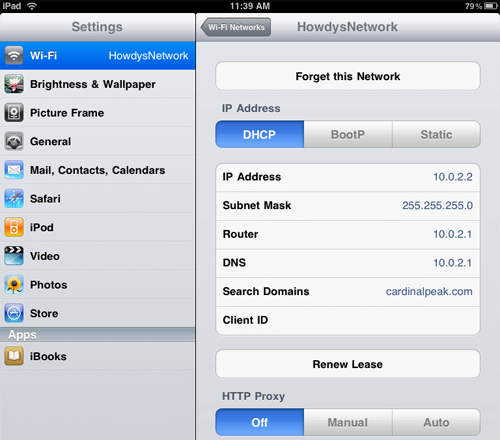
Good—we have an IP address, but more importantly we have reasonable entries for Router and DNS server, as well.

Next, you should test out your bridged network connection by bringing up Safari on the iPad and proving you can visit a web site.

Step 3: Capture the Packets

The final step is to start up Wireshark on your computer and attach to the Wi-Fi interface. You normally need to start Wireshark as the super-user in order to have enough rights to capture traffic. There’s probably a cool way to do this graphically, but being an old-school Unix guy, I always bring up a Terminal window and type sudo wireshark &.

We want to capture packets on the Wi-Fi interface, which on my Mac is device en1. Click the leftmost button on the Wireshark toolbar, and then click “Start” next to device en1:
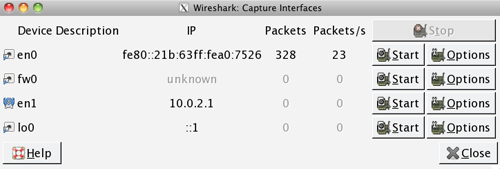
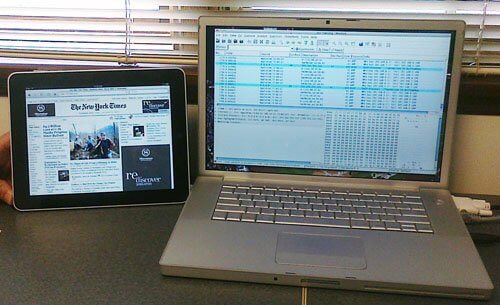
Now you should be all set—do something on your iPad to cause network traffic, and confirm that you see it showing up in the Wireshark window!

Tags: , ,

12 Responses to “Sniffing iPad Traffic”

#8873 | April 7th, 2010 | Jon Craton

Why do you need the Wifi bridge? Can’t you just passively scan the wifi traffic when connecting the iPad directly to a wireless network?

#8874 | April 7th, 2010 | Howdy Pierce Managing Partner

Good question. I suspect ultimately it comes down to using the tools you’re comfortable with. I have done a very little bit of WEP cracking; I’ve found it’s tough to get it working correctly because of dependencies on the exact 802.11 chipset you’ve got and the vagaries of the documentation that’s available on the net. And then I’m never 100% certain that I captured ALL the packets. The Wi-Fi bridge approach I outlined is nice because you’re guaranteed to see all the packets, and it cleanly isolates traffic to and from a single device. But clearly you could solve it another way, too.

#8875 | April 7th, 2010 | chris

because this is easier than passively sniffing wifi data! and iPad specific.

If you’re just interest in HTTP, which is where most of the interesting API calls go over, an HTTP proxy like burp or paros give you insights much quicker.

#8876 | April 10th, 2010 | Dan

I did something similar a couple months ago with my iPhone. I found that passive sniffing was dropping packets, even with the phone and computer side-by-side.

You can also set it up to sniff HTTPS traffic if you really get bored, although I forget the exact details. It involved installing ettercap, and installing the fake root cert on the iPhone as a trusted cert (try emailing it to yourself and installing it). The phone’s convinced it’s talking to the real server (because ettercap does a MitM and it’s signed by a “valid” cert according to your phone’s OS), but you get to read everything.

#8877 | March 22nd, 2011 | flakefrost

people that are interested in this should check out “airpcap” (http://www.cacetech.com/products/airpcap.html)

It enables you to scan a WiFi 802.11 channel using Wireshark.

#8878 | April 11th, 2011 | NJ

Great article and we very helpful setting up the bridge between macbook and ipad. I just had one question though. I had to manually assign IPs on the shared Airport and the ipad to get this to work. My assumption was that since Macbook does not have a DHCP server built in, there wasn’t a way for the ipad to get an assigned IP dynamically. However, from your article, the ipad was able to use DHCP to get an IP. Am I missing a step here to be able to do this? My setup only worked when I went to manual. Thanks – NJ

#8879 | April 15th, 2011 | Howdy Pierce Managing Partner

NJ, I’m not entirely certain what’s going on there, and unfortunately I’ve got my network in a state where I can’t easily duplicate what I had done originally.

I suppose it’s possible that I was running a DHCP server on my Mac. I have actually switched Macs since I wrote this article, and my current Mac *is* running a DHCP server (which appears to be a part of VMWare Fusion). So maybe I got lucky and this DHCP server handed out an IP address to the iPad.

#8880 | December 27th, 2011 | Jhony

Can this be done with a windows laptop instead of a Mac somehow?

#8881 | December 27th, 2011 | Howdy Pierce Managing Partner

Jhony, I’m sure the answer is yes. I’m not particularly motivated to dig out a Windows machine and figure it out, but the basic idea is that you want the Windows machine to connect to the Internet over a wired connection, and act as a base station on the WiFi side. And then you connect the iPad or other device to that WiFi network. Once you’ve got the networking working, Wireshark will work on Windows just like it does on the Mac.

Good luck!

#8882 | March 7th, 2012 | flakefrost

i’d love an official wireshark app for ios!

#8883 | March 8th, 2012 | Howdy Pierce Managing Partner

Me too, but I bet it would infringe Apple’s terms of service. Actually all we really need is tcpdump for iOS (so that you could perform the capture on the iPad or iPhone). Then you could move the pcap file over to a regular computer and view it in Wireshark.

#8884 | March 17th, 2012 | hmedney

Thanks for the suggestion – worked like a charm! Used Windows 7 and Connectify to create the wifi hotspot.

Post a Reply

Name
Mail
Website
Comments


Cardinal Peak offers fast, ultra-reliable engineering services for Embedded Devices, Mobile & Web Clients and Digital Video. Focused on increasing our clients' engineering ROI, we complement their internal resources with project-based contract engineering, ongoing engineering services and onsite staffing.
Let's Talk About Your Next Project


"We found Cardinal Peak's team to be very knowledgeable about embedded video delivery systems. Their ability to deliver working solutions on time—combined with excellent project management skills—helped bring success not only to the product they worked on directly, but also to other projects that were outside of their scope."

Ralph Schmitt, VP, Product Marketing and Engineering, Kustom Signals

(303) 665-3962